|
Use WebDAV
2014/09/08 |
|
This is the example to configure WebDAV settings with SSL connection.
|
|
| [1] | |
| [2] | For example, Make a directory [webdav] and it makes possible to connect to WebDAV directory only by SSL. |
|
[root@www ~]# mkdir /home/webdav [root@www ~]# chown apache. /home/webdav [root@www ~]# chmod 770 /home/webdav
[root@www ~]#
vi /etc/httpd/conf.d/webdav.conf # create new
DavLockDB "/tmp/DavLock"
Alias /webdav /home/webdav
<Location /webdav>
    DAV On
    SSLRequireSSL
    Options None
    AuthType Basic
    AuthName WebDAV
    AuthUserFile /etc/httpd/conf/.htpasswd
    <RequireAny>
        Require method GET POST OPTIONS
        Require valid-user
    </RequireAny>
</Location>
# add a user : create a new file with "-c" ( add the "-c" option only for the initial registration ) [root@www ~]# htpasswd -c /etc/httpd/conf/.htpasswd cent New password: # set password Re-type new password: Adding password for user cent [root@www ~]# systemctl restart httpd |
| [3] | If SELinux is enabled, change rules like follows. |
|
[root@www ~]# chcon -R -t httpd_sys_rw_content_t /home/webdav [root@www ~]# semanage fcontext -a -t httpd_sys_rw_content_t /home/webdav |
| [4] |
It's the settings for WebDAV client on PC (Windows 10).
|
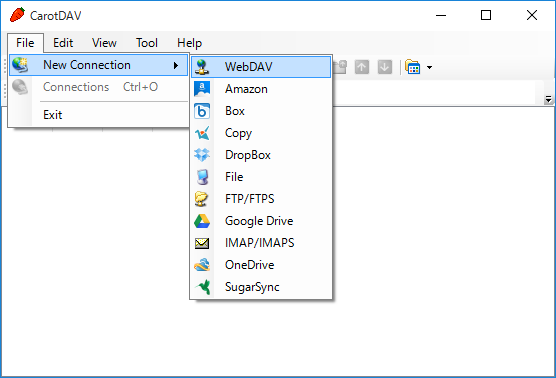
| [5] | Download 'CarotDAV' which is a free WebDAV Client from following site. ⇒ http://www.rei.to/carotdav_en.html After downloading, Install and start CarotDAV, then the following screen is shown, Click 'File' button and select 'WebDAV'. |
|
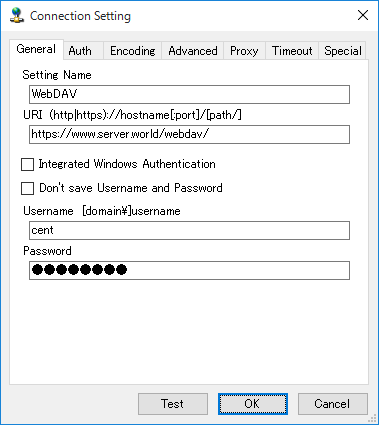
| [6] | Input any name in 'Setting Name' field and input [server name/webdav directory] in 'URI' field and input user name and password like follows. |
|
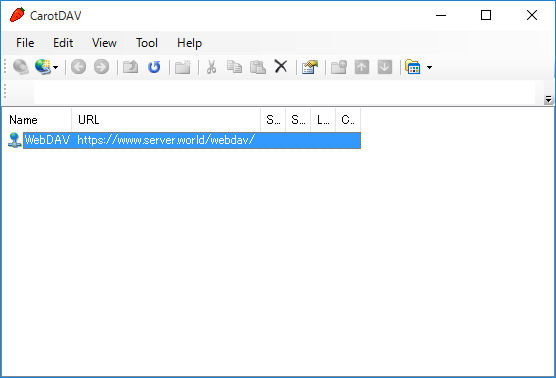
| [7] | The configuration is added like follows, click it to connect to the server. |
|
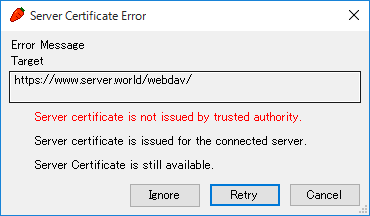
| [8] | The waring is shown like follows, it's SSL certificates is not installed on your PC, it's no ploblem, Click 'Ignore' and go next. |
|
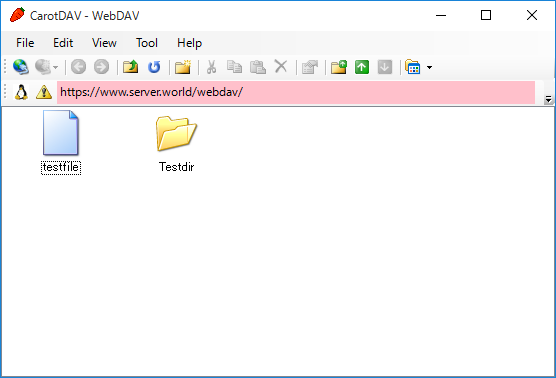
| [9] | Just accessed. |
|